> For the complete documentation index, see [llms.txt](https://www.opal-rt.com/docs/llms.txt). Markdown versions of documentation pages are available by appending `.md` to page URLs; this page is available as [Markdown](https://www.opal-rt.com/docs/hil-starter-kit/get-started/download-and-install-the-c2000-software.md).
# Download & Install the C2000 Software
The C2000 controller included in the **HIL Starter Kit** can be used as an external controller, coupled with the simulation inside the OP4300 to set up Hardware in-the-loop experiments.
Although the C2000 controller can be programmed by writing code manually, we'll favor a Simulink-based approach, to remain in the Model-Based Design paradigm.
These installation steps require to have MATLAB/Simulink installed first. Required toolboxes include **Simulink Coder** and **Embedded Coder**.
{% stepper %}
{% step %}
### **Install and configure the C2000 Microcontroller Blockset Add-On**
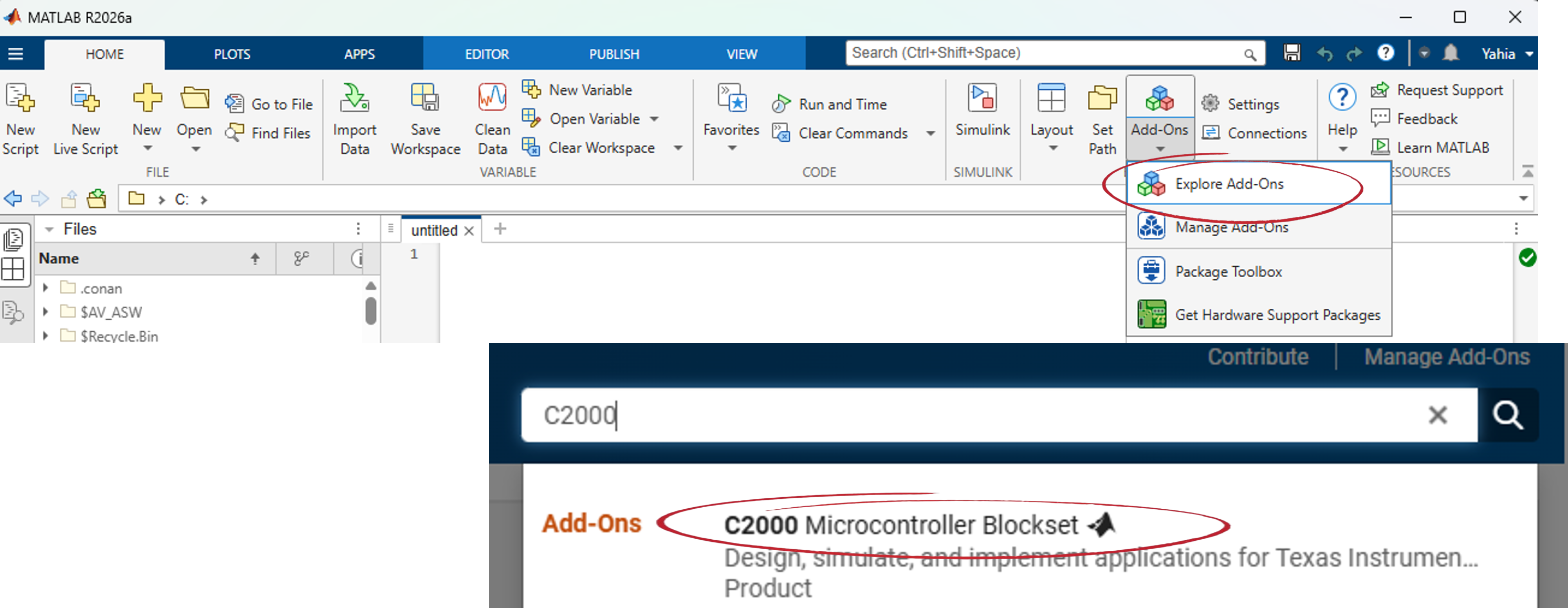
* Open MATLAB, go to **Add-Ons** -> **Explore Add-Ons**.
* Search for **C2000 Microcontroller Blockset** and **Add** it.
{% hint style="info" %}
For MATLAB versions until R2022B, the add-on to install is called **Embedded Coder Support Package for Texes Instruments C2000 Processors**.
{% endhint %}
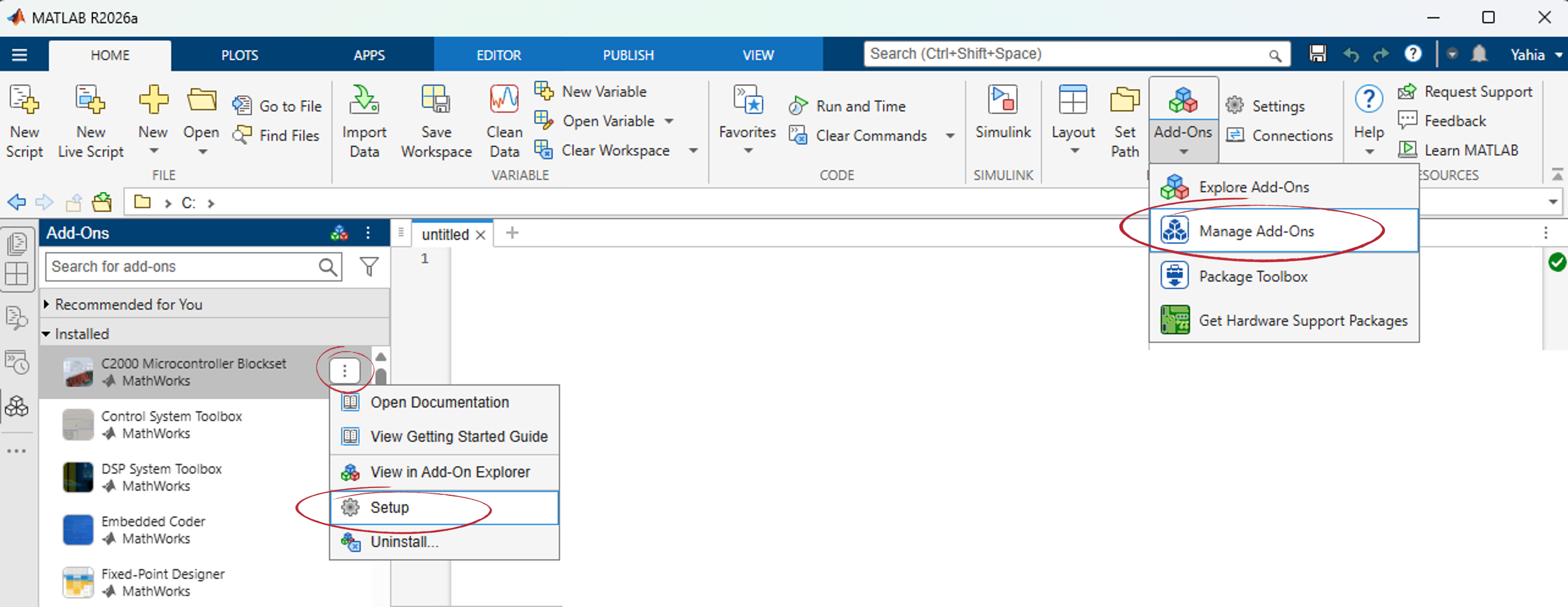
* Click on **Add-Ons** -> **Manage Add-Ons**.
* Next to the **C2000 Microcontroller Blockset** tile, click on the button with **3 dots**, then **Setup**.
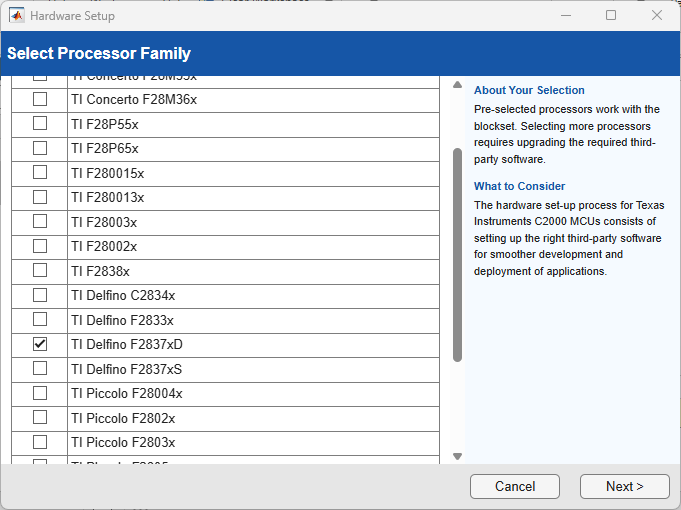
* Tick only the processor family **TI Delfino F2837xD**, then **Next**.
{% endstep %}
{% step %}
### Install Third-Party Software
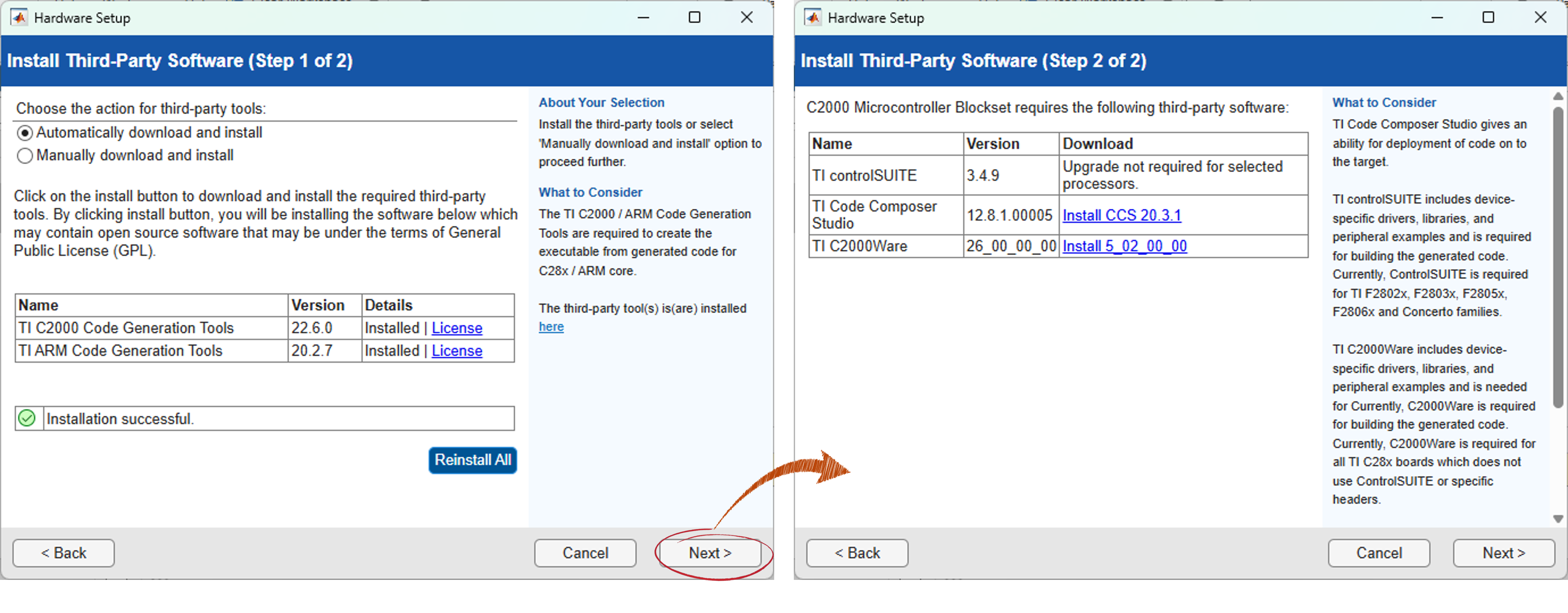
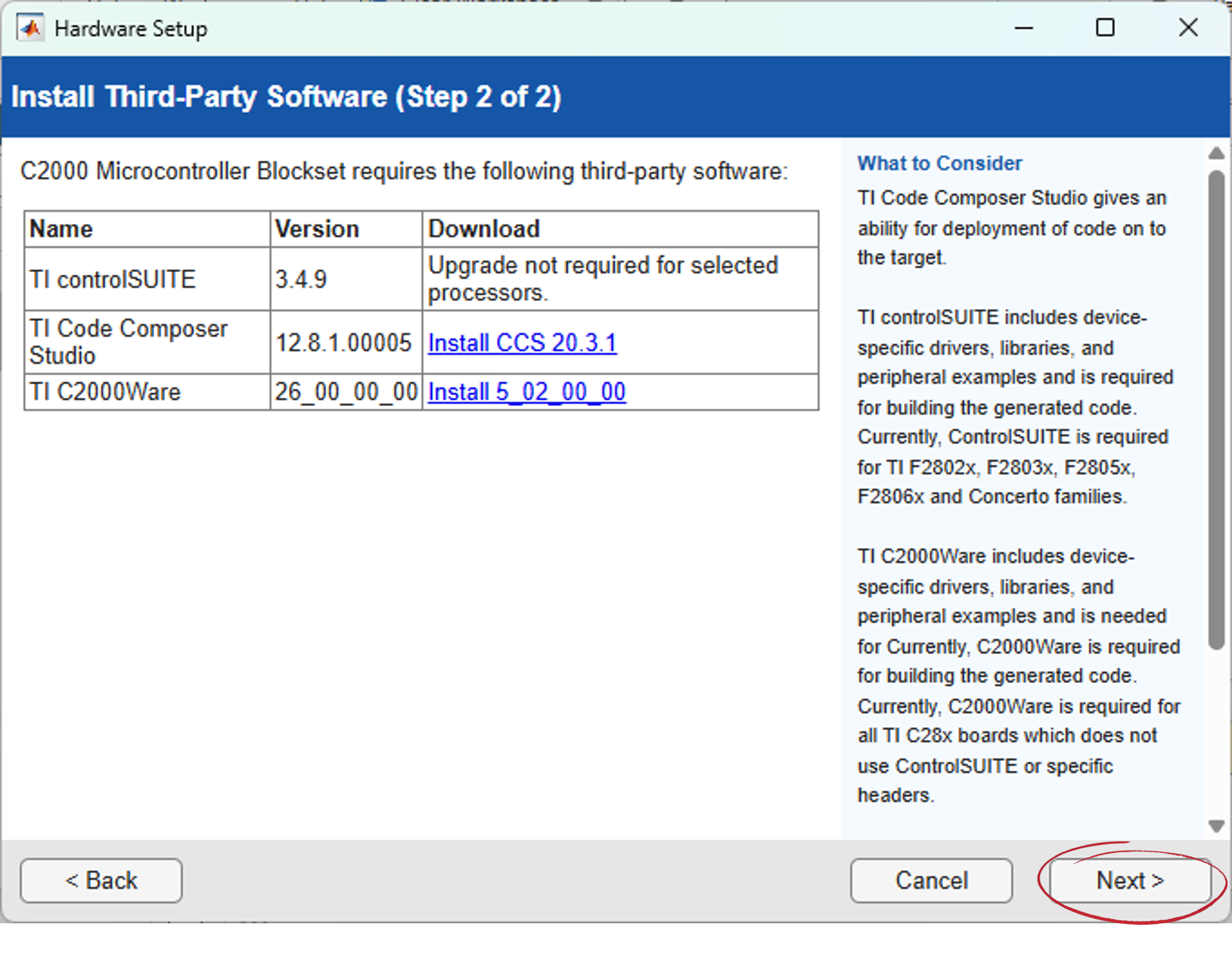
Install all third-party modules as suggested. The proposed versions automatically accomodate your MATLAB version.
Follow the links given to download and install:
* C2000 Code Generation Tools
* TI controlSUITE
* TI Code Composer Studio
* TI C2000Ware
It's recommended to keep the default installation paths.
{% hint style="info" %}
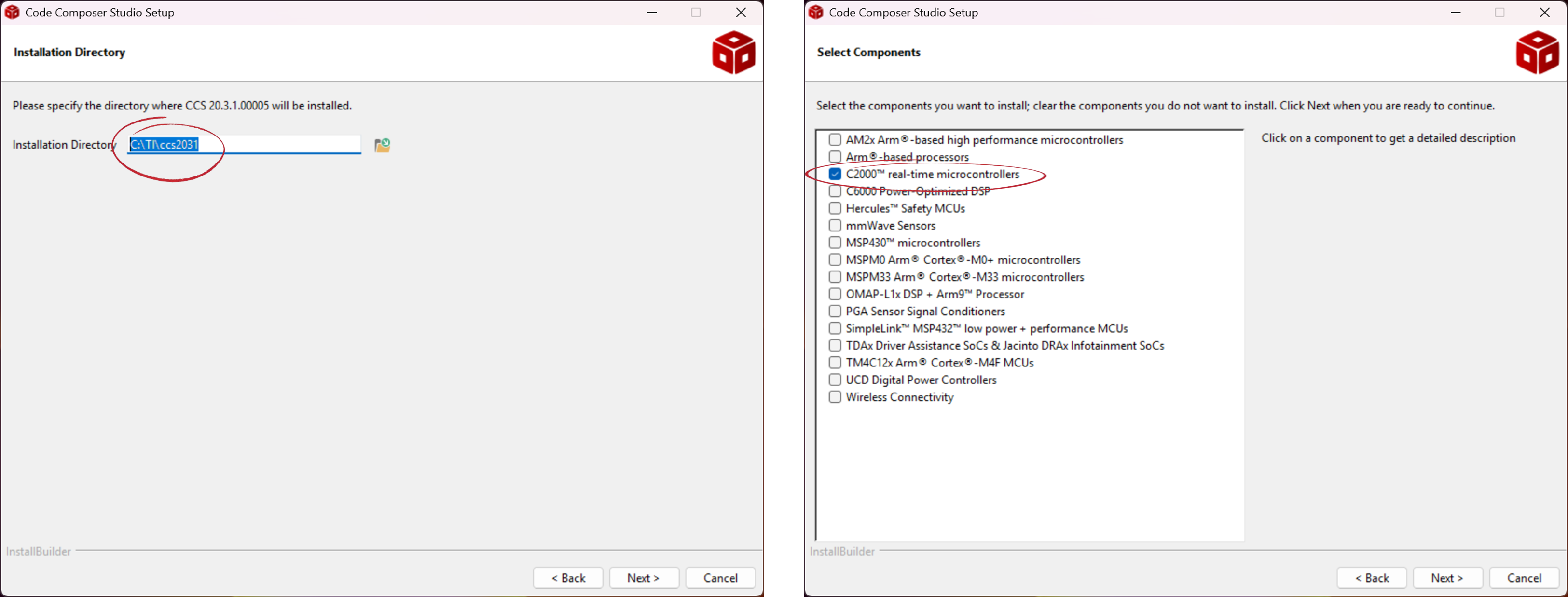
While installing TI Code Composer Studio, keep in mind the **Installation Directory**, as its path will be needed to finalize the installation. Also, when prompted to select the desired components, select only **C2000 real-time microcontrollers**.
{% endhint %}
{% endstep %}
{% step %}
### Finalize the installation
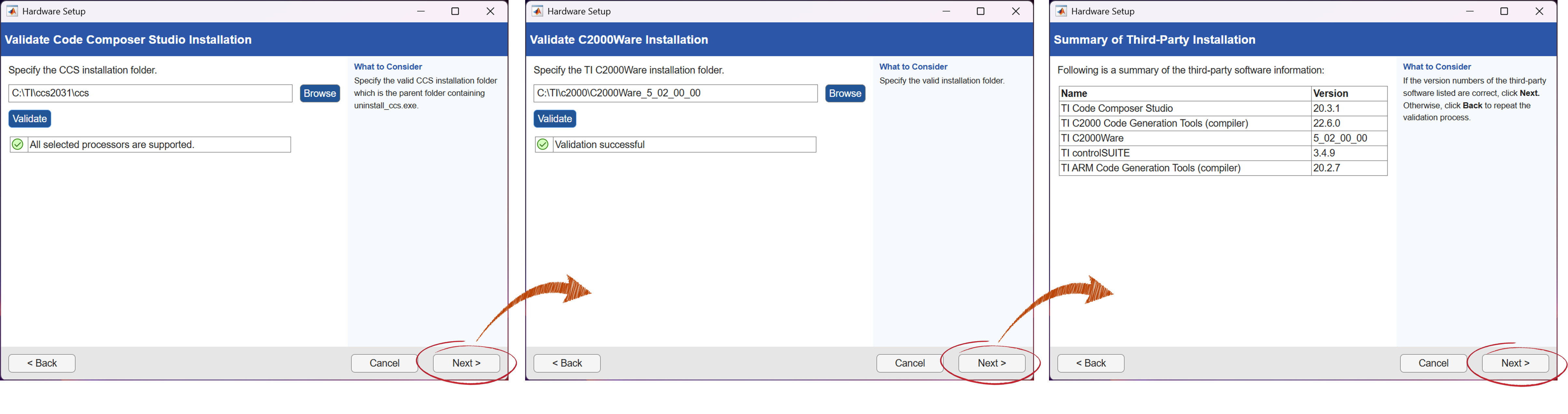
* When all third-party installations are over, go back to MATLAB, and click **Next**.
* You'll be prompted to **Validate** all installations...
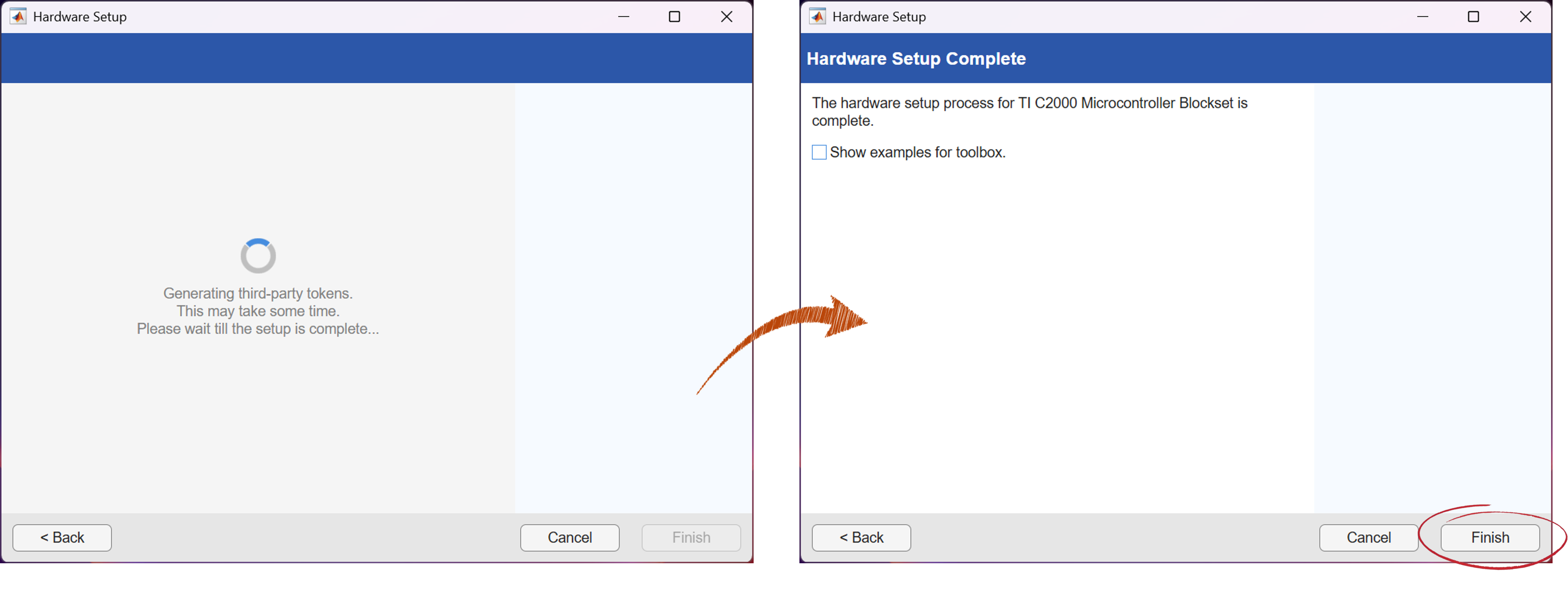
* ... before the installation process ends.
{% endstep %}
{% step %}
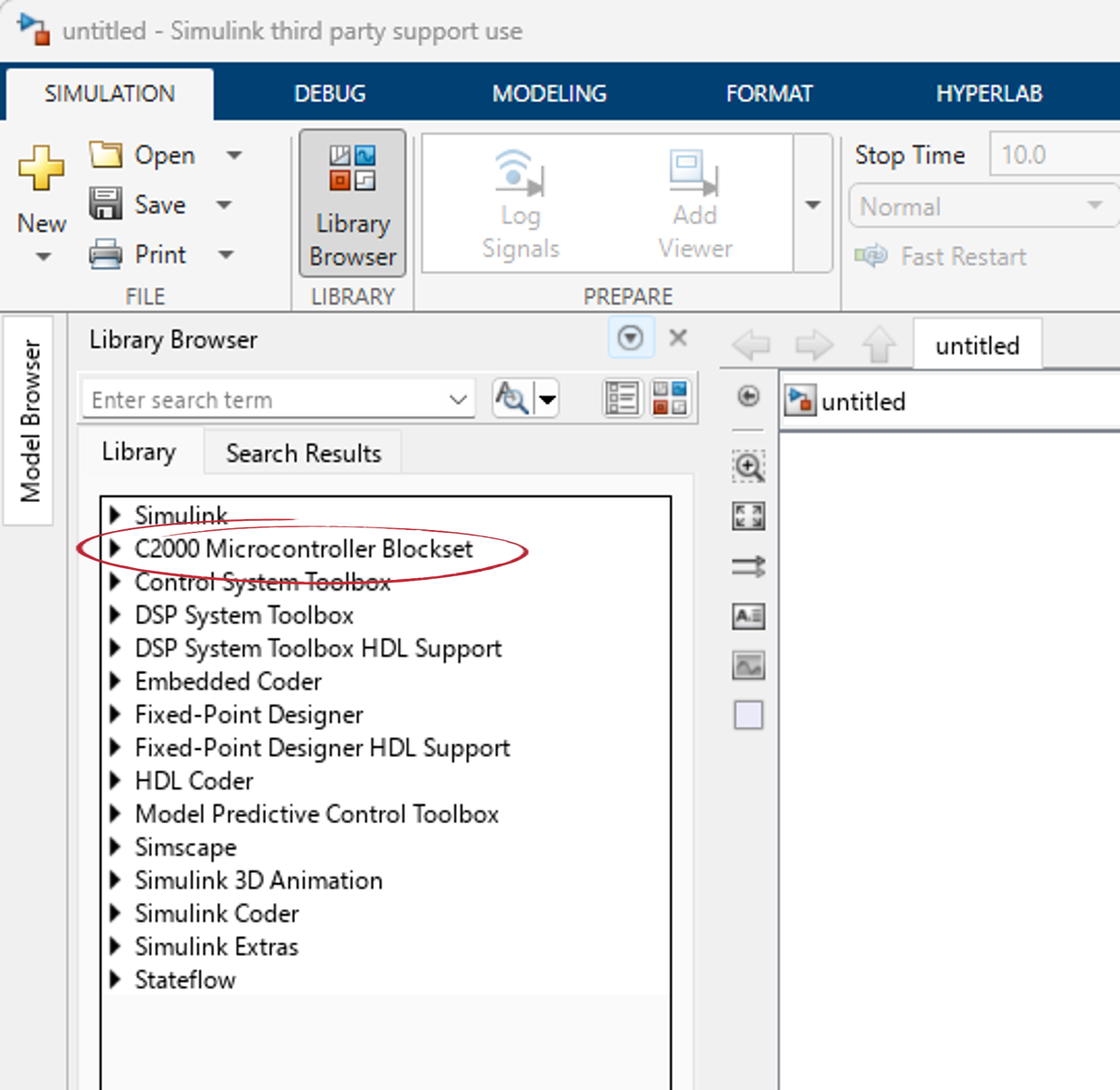
### **C2000 Microcontroller Blockset**
* The **C2000 Microcontroller Blockset** should now be visible in the **Simulink Library Browser**.
{% endstep %}
{% endstepper %}
---
# Agent Instructions
This documentation is published with GitBook. GitBook is the documentation platform designed so that both humans and AI agents can read, navigate, and reason over technical content effectively. Learn more at gitbook.com.
## Querying This Documentation
If you need additional information that is not directly available in this page, you can query the documentation by asking a question.
Perform an HTTP GET request on the following URL with the `ask` and `goal` query parameters:
```
GET https://www.opal-rt.com/docs/hil-starter-kit/get-started/download-and-install-the-c2000-software.md?ask=&goal=
```
`ask` is the immediate question: it should be specific, self-contained, and written in natural language.
`goal` is what the user is ultimately trying to achieve, the reason they need the answer. Sharing it helps GitBook give you a better, more relevant answer. A goal is most helpful when it describes the outcome the user wants rather than restating the question. For example, with `ask=how do I create an API token`, a goal like `automate deployments from our CI pipeline` lets GitBook tailor the answer to that use case.
The response will contain a direct answer to the question and relevant excerpts and sources from the documentation.
Use this mechanism when the answer is not explicitly present in the current page, you need clarification or additional context, or you want to retrieve related documentation sections.