> For the complete documentation index, see [llms.txt](https://www.opal-rt.com/docs/llms.txt). Markdown versions of documentation pages are available by appending `.md` to page URLs; this page is available as [Markdown](https://www.opal-rt.com/docs/op8120/op812x-mscc-conditioning-modules/op8122-current-source-1-v-2-a-4-channels.md).

# OP8122 Current Source 1 V - 2 A - 4 Channels

## Description <a href="#description" id="description"></a>

The **OP8122 MSCC** module converts four standard ±16 V<sub>peak</sub> voltages into four current sources up to 2 A<sub>rms</sub> under 1 V<sub>rms</sub> (voltage compliance)

The OP8122 contains both current and thermal protections. An indicator is present to indicate whether the output is in fault. It can be used in standalone with minimal connection or in an OP8120 chassis for a total of 32 current sources per chassis.

When used in an OP8120 chassis, each channel is configured to match the OPAL-RT’s DB37 standard pinout. The OP8122 module draws its power from the OP8120 chassis.

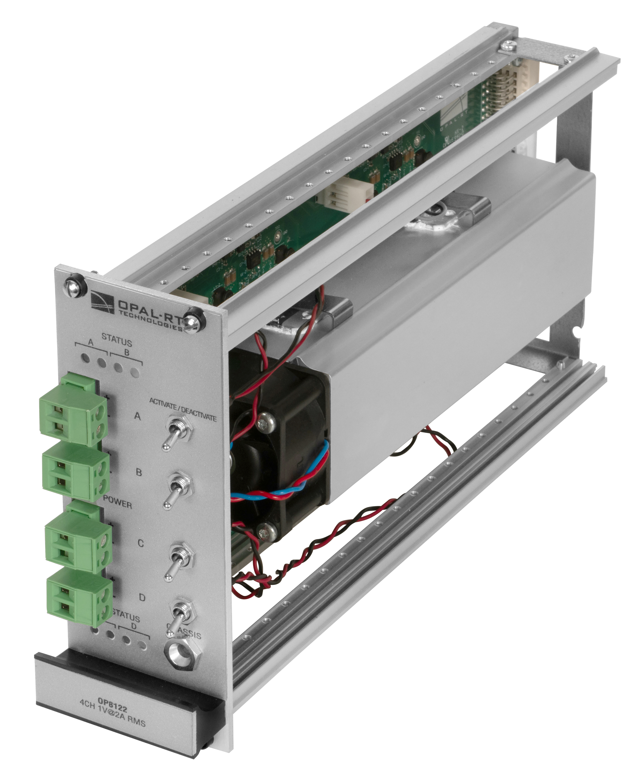
<figure><img src="https://content.gitbook.com/content/re3d8M3OpCkdPOndYEMH/blobs/v8UU66p73Mr1tTVgnLAi/image.png" alt="" width="320"><figcaption><p><em>OP8122 conditioning module</em></p></figcaption></figure>

## Features <a href="#features" id="features"></a>

* LED fault indicators
* Current and thermal protection
* Individual channel activation/deactivation
* Outputs can be connected in parallel for higher drive current
* Front screw terminal connectors
* Easy installation (in chassis)

## Applications <a href="#applications" id="applications"></a>

* Current sensor simulation
* Current source

## OP8122 Interface <a href="#op8122-interface" id="op8122-interface"></a>

### Channel Identification <a href="#channel-identification" id="channel-identification"></a>

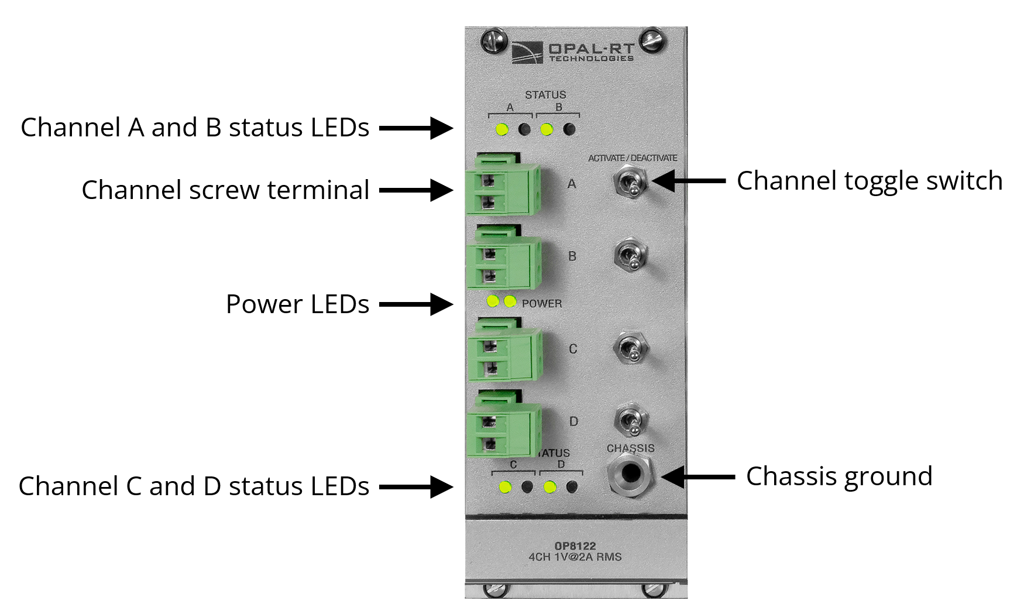
The OP8122 has **4 screw terminal connectors** identified as **channels A, B, C and D** and **4 toggle switches** to activate or deactivate each channel.

<figure><img src="https://content.gitbook.com/content/re3d8M3OpCkdPOndYEMH/blobs/6Jln8koOWA3ivFl9W1so/image.png" alt="" width="563"><figcaption></figcaption></figure>

### Status LED Table <a href="#status-led-table" id="status-led-table"></a>

**Each channel** has **two LEDs**, one <mark style="color:red;">**red**</mark> and one <mark style="color:$success;">**green**</mark>.\
The following table explains what the channel status is, according to the LED conditions.

![](https://content.gitbook.com/content/re3d8M3OpCkdPOndYEMH/blobs/EQp1bpqaazAthNfJdo2M/image.png)

| <mark style="color:$success;">**Green LED**</mark> | <mark style="color:red;">**Red LED**</mark> | **Status**  |
| -------------------------------------------------- | ------------------------------------------- | ----------- |
| <mark style="color:$success;">**On**</mark>        | Off                                         | Activated   |
| Off                                                | <mark style="color:red;">**On**</mark>      | Deactivated |
| <mark style="color:$success;">**On**</mark>        | <mark style="color:red;">**On**</mark>      | **Fault**   |

### Power LED Description <a href="#power-led-description" id="power-led-description"></a>

**Each module has 2 power&#x20;**<mark style="color:$success;">**green LEDs**</mark>**:**

* When the **left** **LED** is **on**, it indicates that the **12 Vdc fan** is operating
* When the **right** **LED** is **on**, it indicates that the **±5 Vdc power** is functioning properly

### Activate/Deactivate Toggle Switches\* <a href="#activate-deactivate-toggle-switches" id="activate-deactivate-toggle-switches"></a>

Each channel has an **activate/deactivate toggle switch**.\
The channel can be **activated or deactivated at any moment** **even if an input signal is present**.

\* An earlier version of this module had push buttons.

## Specifications <a href="#specifications" id="specifications"></a>

| **Product name**                              | OP8122 MSCC Current Output 1V RMS/2 A RMS (4 ch, 2A)      |
| --------------------------------------------- | --------------------------------------------------------- |
| **Part number**                               | 126-0419                                                  |
| **Power supply (provided by OP8120 chassis)** | <p>±5 Vdc @ 2.5 Adc</p><p>12 Vdc @ 275 mAdc</p>           |
| **Maximum output current**                    | 2 A<sub>rms</sub> ( 1 V<sub>rms</sub> compliance voltage) |
| **Output frequency**                          | 10 Hz to 1 kHz                                            |
| **Number of channels**                        | 4 channels                                                |
| **Protection**                                | Current and thermal protection                            |
| **Dimensions**                                | 13 × 5 × 22.5 cm (5.12” × 1.97” × 8.86”)                  |


---

# Agent Instructions
This documentation is published with GitBook. GitBook is the documentation platform designed so that both humans and AI agents can read, navigate, and reason over technical content effectively. Learn more at gitbook.com.

## Querying This Documentation
If you need additional information that is not directly available in this page, you can query the documentation by asking a question.

Perform an HTTP GET request on the following URL with the `ask` and `goal` query parameters:

```
GET https://www.opal-rt.com/docs/op8120/op812x-mscc-conditioning-modules/op8122-current-source-1-v-2-a-4-channels.md?ask=<question>&goal=<user_goal>
```

`ask` is the immediate question: it should be specific, self-contained, and written in natural language.
`goal` is what the user is ultimately trying to achieve, the reason they need the answer. Sharing it helps GitBook give you a better, more relevant answer. A goal is most helpful when it describes the outcome the user wants rather than restating the question. For example, with `ask=how do I create an API token`, a goal like `automate deployments from our CI pipeline` lets GitBook tailor the answer to that use case.

The response will contain a direct answer to the question and relevant excerpts and sources from the documentation.

Use this mechanism when the answer is not explicitly present in the current page, you need clarification or additional context, or you want to retrieve related documentation sections.